Your computers, from any place. For you and your AI agent.
ArboView is one app to control a computer and to stream games from it, on Windows, macOS and
Linux. Connect Claude Code, Cursor or Codex to your account, and your agent can use those
computers too. Only the computers where you turn it on.
TypeError: Cannot read properties of undefined (reading 'id')
OK
10:05 AM
Settings · Printers & scanners
Home printerError
Open print queuePrint a test page
Print to PDFReady
Home printer · Queue
Recipe.docxError
No documents in the queue
PauseRestartCancel
Type here to search
Printers & scannersSystem settings
Print failedRecipe.docx could not print.
Test page sentHome printer
4:32 PM
Agreement-signed.pdf
claude · ~/workarboview · MCP
A replay of the real ArboView tools. While an agent works, the
badge shows on the screen of that computer.
The animation shows three examples. On a locked Mac, the agent unlocks the screen, opens a mail,
drags its attachment into the Contracts folder and downloads the file. On a Windows test PC, it
builds an app with a shell command, fills in a form and gets the error of a bug report. On a
Windows laptop, it opens the printer settings, cancels a stuck print job and prints a test page.
Runs on
Windows
macOS
Linux
Any browser
Phones & tablets
Your agent in
Claude Code
Claude Desktop
Cursor
Codex
Any MCP app
Remote desktop · Game streaming
Sit anywhere. Use a computer that is somewhere else.
You see the screen of the other computer, and your mouse, keyboard and gamepad control it. People
use ArboView this way every day. The AI agents use the same connection.
Your laptop · clientGaming PC · Windows · hostvideo + soundgamepad + keysHEVC · 120 fps
Game streaming
Play the games of your PC on your laptop.
Up to 120 fpsGame mode, in HEVC or AV1 from the graphics card of the PC.
Your gamepadIt becomes an Xbox pad on the PC. The game sees a real controller.
Any roomDirect on your home network. Through the relay when you are away.
Help desk · clientLobby kiosk · Linux · hostscreenclicks + files
Remote desktop
Update the lobby kiosk from the help desk.
Nobody at the kioskUnattended access lets you in with your saved password.
Drop a fileDrop a file on the session, and it goes to the kiosk.
All the kiosksOne tab for each kiosk, or two side by side.
AI agents · MCP
Give your agent a computer. Keep the keys.
Your ArboView account is one MCP endpoint for all your computers. The agent signs in with your
account in the browser. It never gets an ArboView ID, a host password or a login password.
“Get the house footprint from my notebook at home.”Tablet · your AI appAI agentArboView account · MCPHome notebook · macOS · hostrun_command mdfind house_footprintdownload_file ~/Plans/house_footprint.pdfhouse_footprint.pdf · 2.4 MB
AI agents
Get the plan from your notebook at home. From the site.
One sentenceAsk in Claude, Cursor or Codex. The agent finds the file.
Nobody at homeThe agent uses a computer only where you allowed AI agents.
The file comes to youThrough a link that works for 15 minutes, not through the chat.
Run this in a terminal
claude mcp add --scope user --transport http arboview https://account.arboview.com/mcp
Then type /mcp, select arboview and Authenticate. Your browser opens the ArboView sign-in.
bash or PowerShell. Files up to 100 MB through a 15-minute link, not through the chat.
Unlock
unlock_screen
macOS. The computer types its own password from its keychain. The agent never sees it.
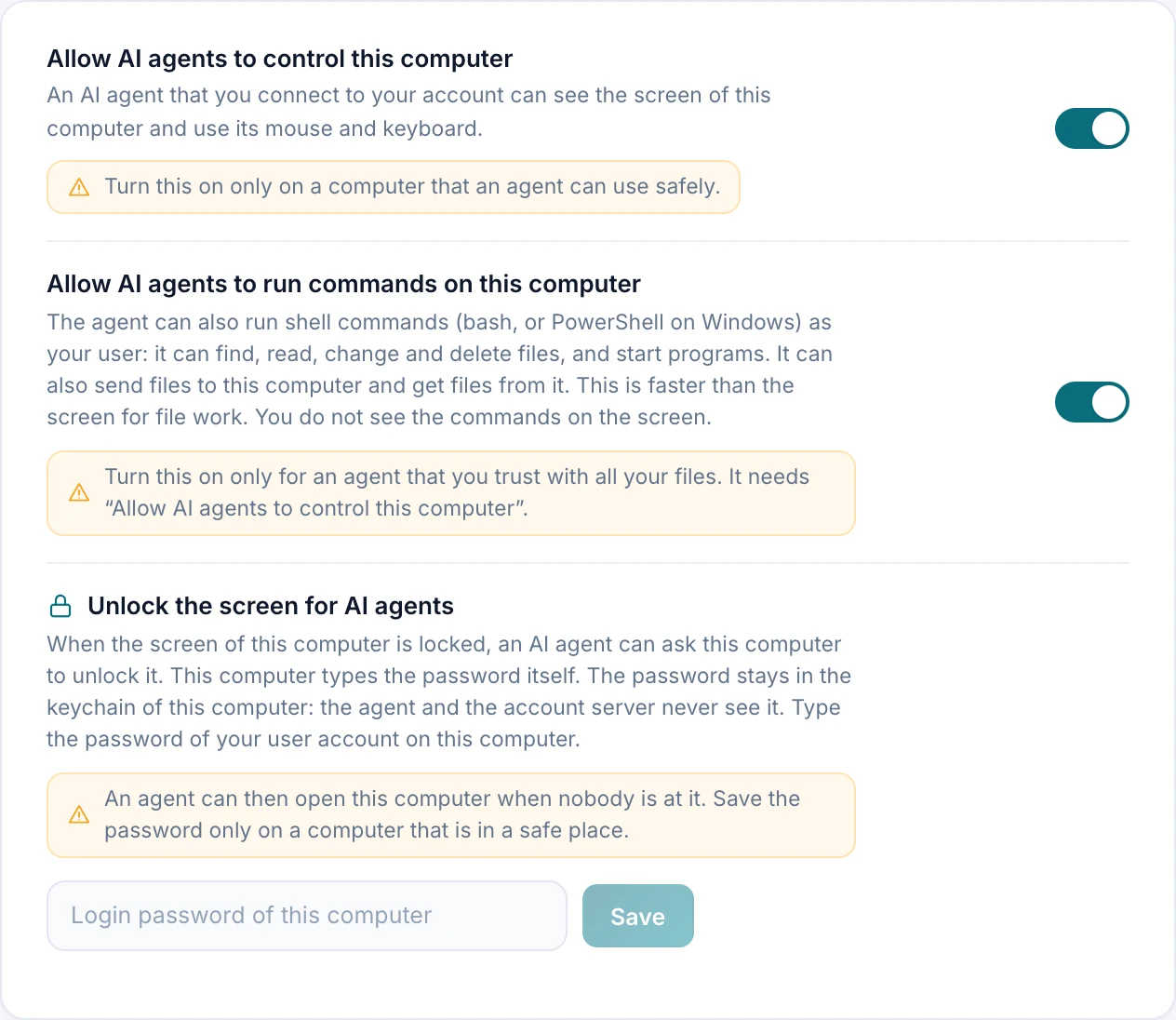
Off until you turn it on. On each computer.
The account does not decide for a computer. Only the computer itself can allow agents, and it
checks again before each command.
Control
Allow AI agents to control this computerScreen, mouse and keyboard. Off after each sign-in.
Commands
Allow AI agents to run commandsThe shell and the files. Needs the first switch.
Unlock
Unlock the screen for AI agentsmacOS. Three tries in 15 minutes, only while the screen is locked.
A badge on the screen shows when an agent works.
Your notes go to every agent: “Use 1Password to sign in.”
In the app · AI agent
Two modes · One app
Work on it. Play on it.
You select the mode when you connect. The mode sets the menu, the session bar, the look and how
the host encodes the video.
Files both waysSend files, browse the host, or put files in the shared box of the session.
Clipboard and chatCopy on one computer, paste on the other. Talk to the person at the host.
All the screensPick a screen of the host. Open sessions in tabs, or two side by side.
Meetings on a Mac hostYour microphone becomes a microphone of the host, for Zoom or Google Meet there.
Privacy modeThe host screen goes black and its local input stops. You still see and control it.
A screen for a host with no monitorA Mac mini or a GNOME server gets a virtual screen at the size of your window.
Up to 120 fpsH.264, HEVC or AV1, from the hardware encoder of the host: NVENC, VideoToolbox, Quick Sync, AMF.
ControllersYour gamepad becomes a virtual Xbox pad on a Windows or Linux host.
Immersive mouseOn a Mac, full screen with raw relative motion, for games that lock the pointer.
Full pictures on requestThe host sends a keyframe only when the client asks. More of the bitrate goes to the picture.
Holds the frame rateOn a weak link the stream goes from 1080p60 to 720p60, not to 30 fps.
Nothing in the wayA slim menu: codec, bitrate, fps, resolution, encoder, controllers.
In the browser
No download. Open a browser and take control.
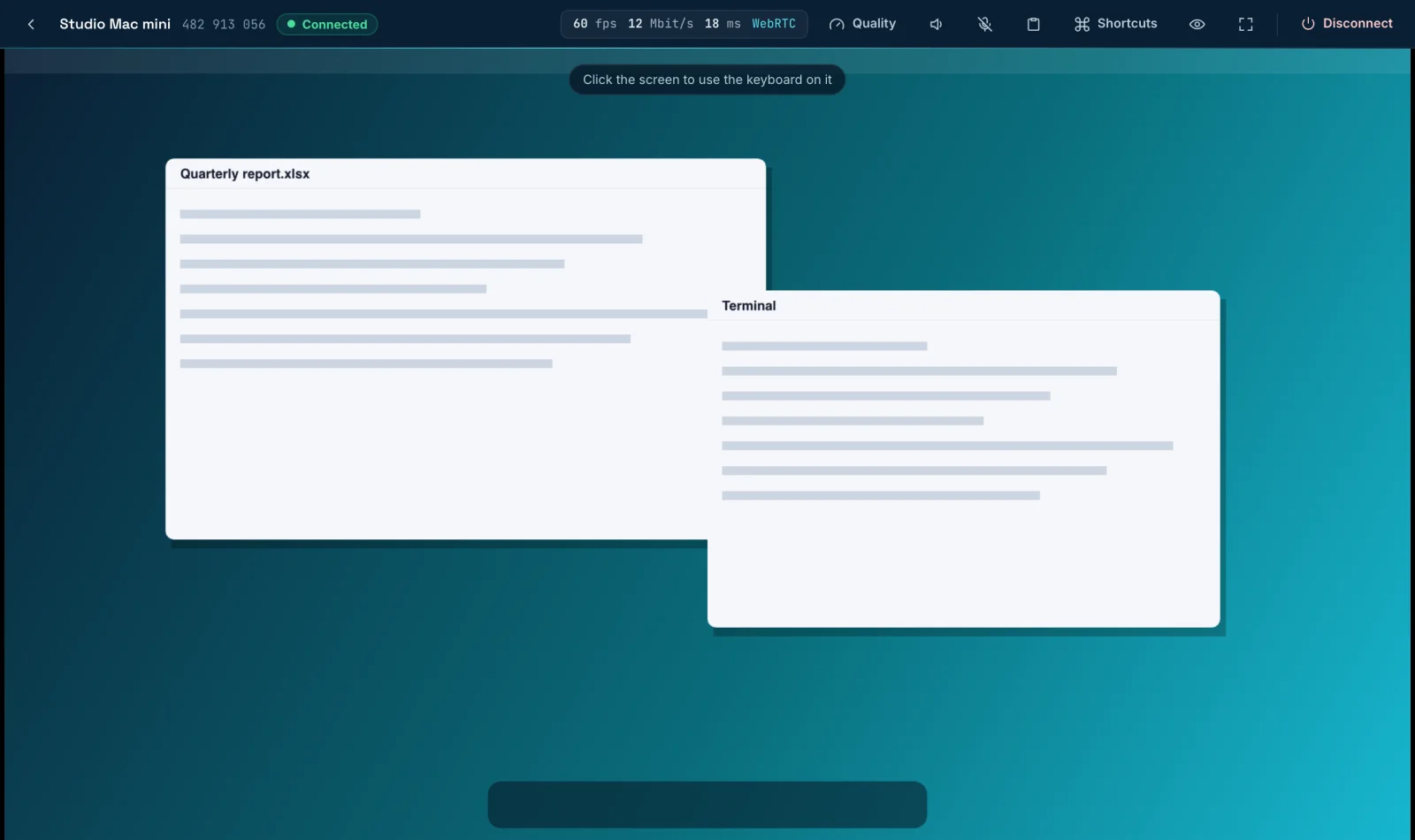
Sign in at app.arboview.com and connect to a computer of your account, or to any computer by
its ID and password. The browser decodes the video with its hardware, at up to 60 fps.
app.arboview.com/#/session/482913056Nothing to install
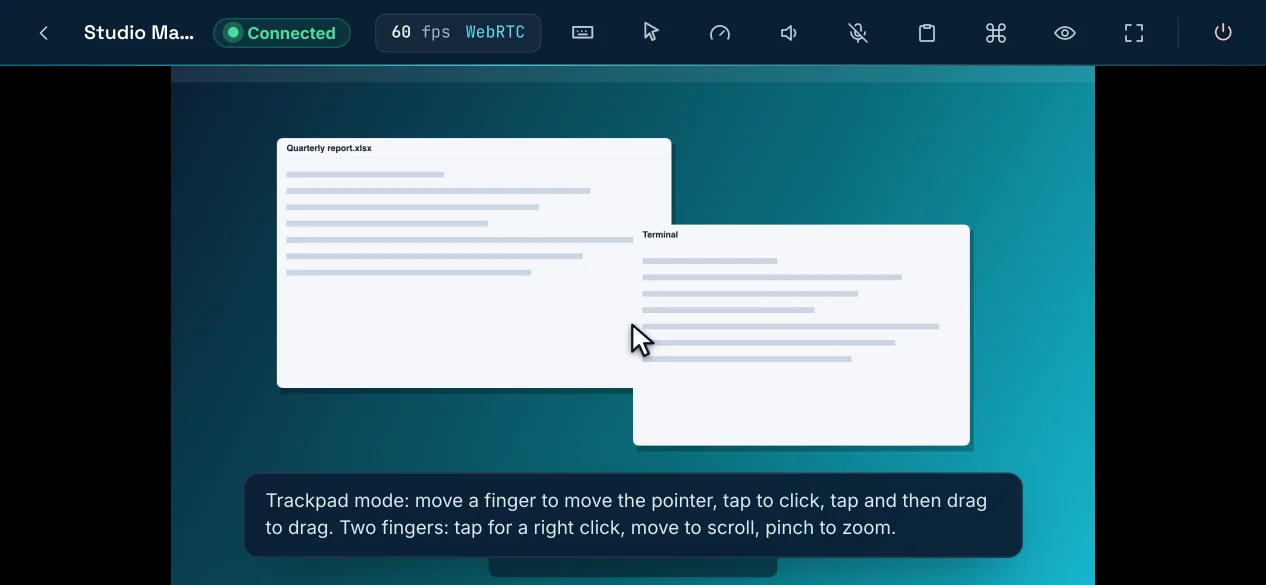
Phone · trackpad mode
Studio Mac minihost · ArboView app
WebRTC · direct · video, sound and inputaccount.arboview.com · sign-in and sealed setup only
Your browserChrome · no app
Host → browser, directThe video and the sound go from the host to your browser. The server is not in the media path.
Encrypted in the browserThe page does X25519 + ChaCha20-Poly1305 itself. The server only forwards sealed frames.
Phones and tabletsTrackpad and touch modes, pinch to zoom, and a key bar with Esc, Tab, Ctrl and the arrows.
A remote tool has the keys to a computer. These are the rules that ArboView keeps on each one.
Allow or Deny
A person with the one-time password waits for your Allow on the host. The buttons wait one second, so a click by accident does nothing.
View-only
Let a person watch without control. A second session of the same device gets the stricter state.
Secrets stay home
A remote file browser never opens .ssh, .aws, the keychains or the ArboView folders. Each file request shows on the host.
Guesses run out
After 30 wrong guesses of the permanent password, password sign-in stops for 15 minutes.
Marked downloads
A file that you receive gets the macOS quarantine or the Windows download mark, as a browser download does.
Proven devices
Each device proves its own key to the server. A copied relay key does not put another device online.
Share with anyone
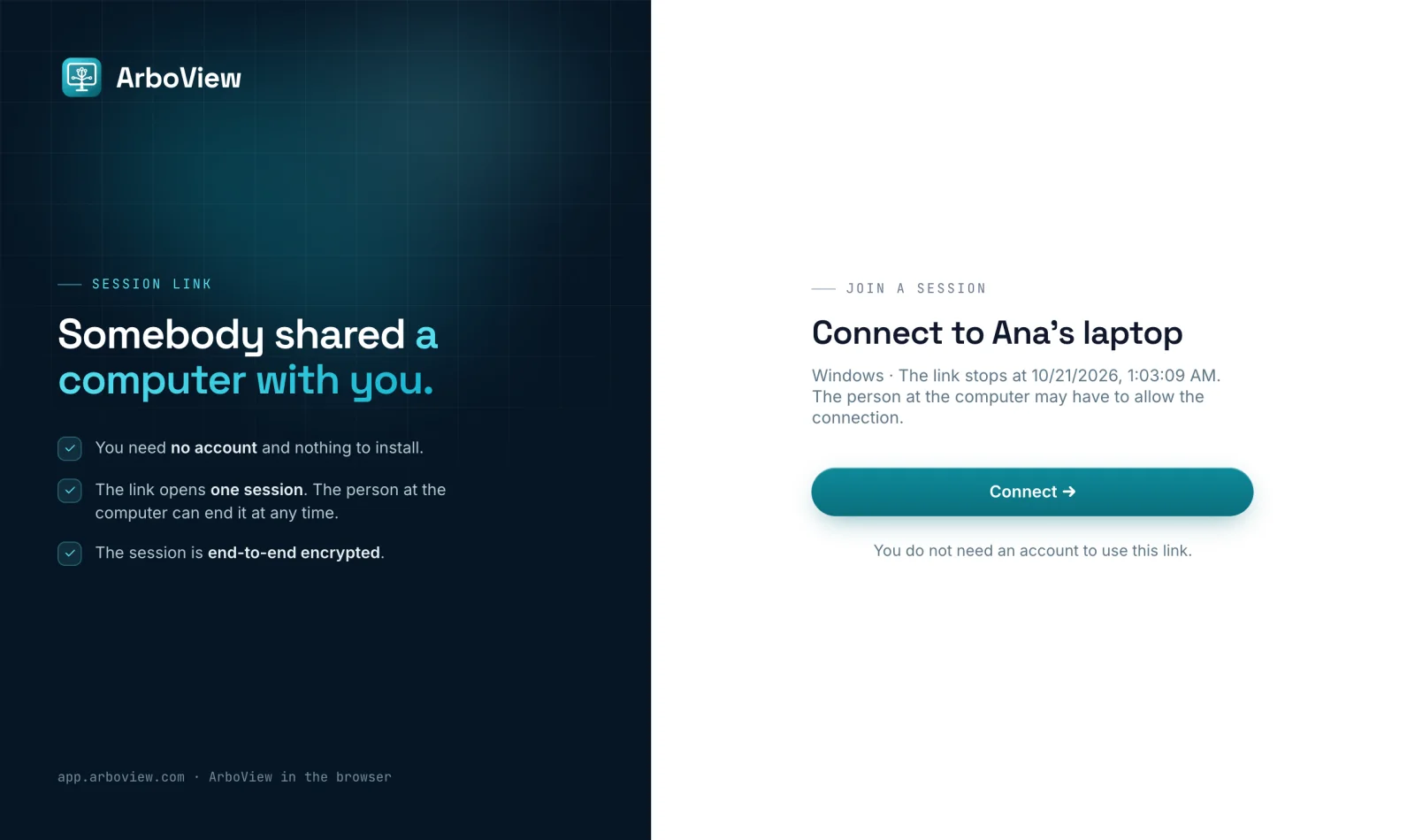
One link. No account and no download on the other side.
Let a colleague, a support agent or a friend into this computer for one session. They click the
link, and the session opens in their browser.
1
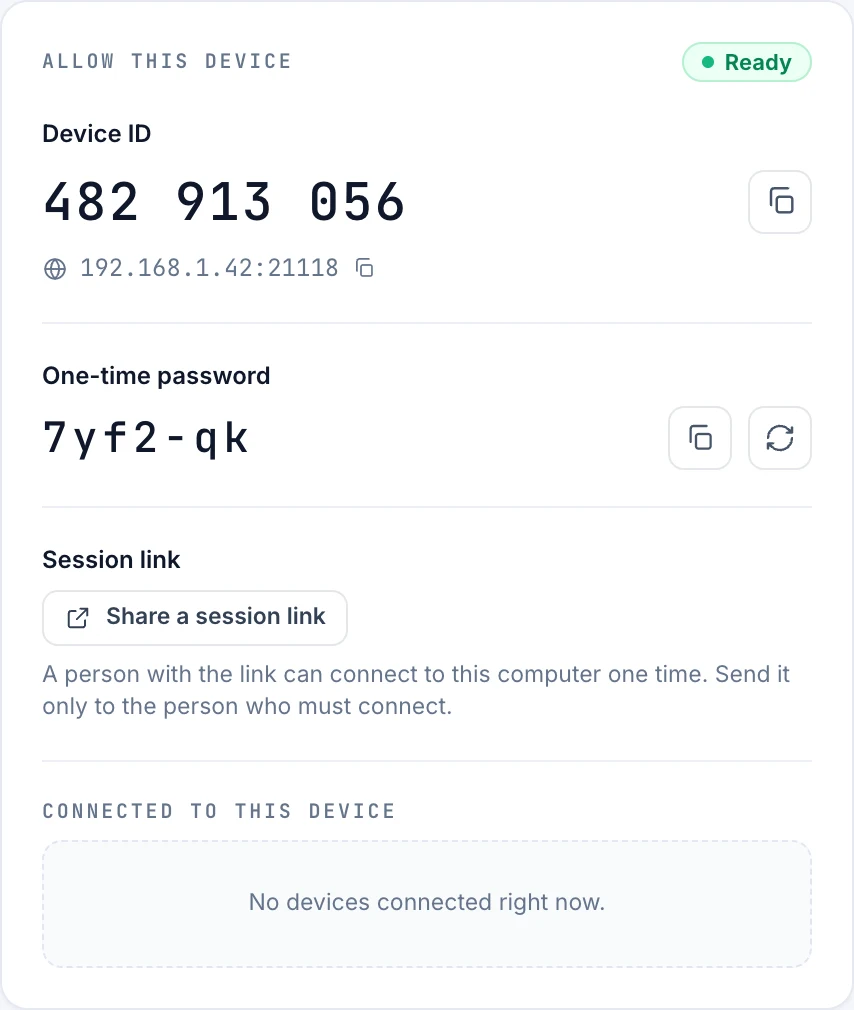
You share a linkIn the app: Home → Share a session link. It expires after 1 hour, 24 hours or 7 days.
2
They click itThe session opens in a browser tab. No account, no app, no setup.
3
You allow itAllow or Deny shows on your screen. You can end the session at any time.
https://app.arboview.com/j/4fQ9…#secret
The secret part never goes to the server. The server cannot open the session.
Your computer · the app
one link
app.arboview.com/j/4fQ9xLm2Rt8kVb3NwZ7pQa
Their side · any browser, nothing to install
Does the person need help on their own computer? They install ArboView and select
Get help without an account. They read you the ID and the one-time password. A guest computer can
only share its screen.
Get ArboView
Install it on two computers. Then ask your agent to use them.